


As you use your PC, you will likely see storage saturate. If you have come across this recurring situation, stay with us. In this article we tell you how free up space in Windows 11 in a simple way, using the tools provided by the system itself and without installing any program.
But, in addition to showing you how free up space in Windows 11, we are talking about a trick that will allow you to automatically delete unnecessary files from your computer. We also give you some tips to avoid running out of space on your computer.
How to free up space in Windows 11 by partitions
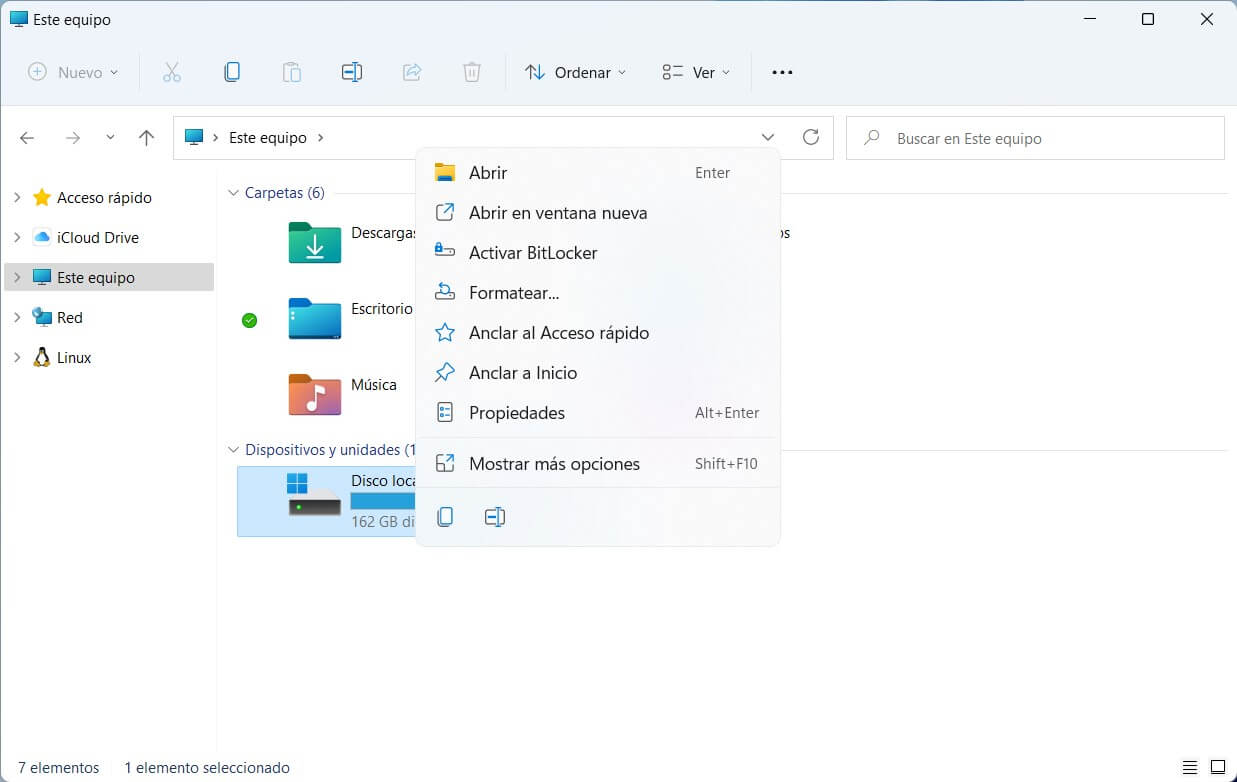
The first method we recommend when freeing up space in Windows 11 is to use the tool available on each partition. You just have to open the file explorer, go to the section This team and right click on the drive you want to clean. In the context menu, select Properties (edit).
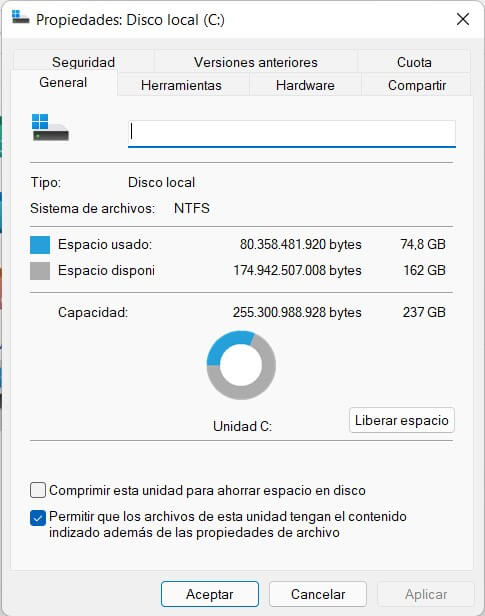
Various options related to the drive will appear in the pop-up window. The one that interests us is in the tab general. We mean the button Free up space, located below the partition’s storage status graph. Click on it to continue.
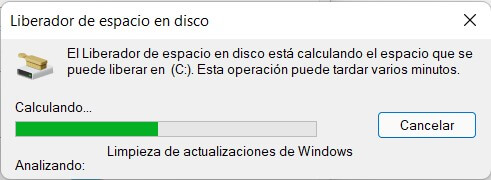
Windows will scan the drive for expendable files which, after deletion, free up disk space.
After analysis, the Disk Cleanup will appear on the screen. Select all the elements that you think appropriate to eliminate. Among them are temporary files, documents sent to the trash and other cache files. If you look at the top, you will see the total space gained. Only by clicking on To accept the tool will start its work. However, you can free up even more space by deleting unnecessary files by pressing Clean system files.
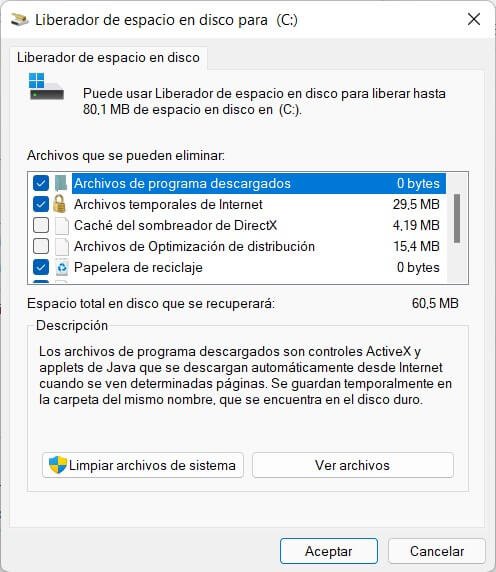
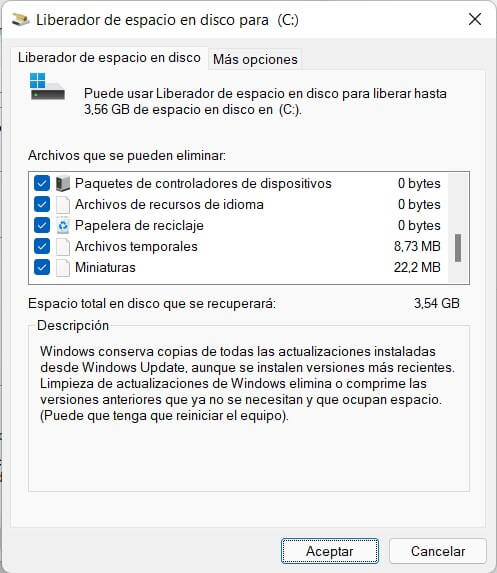
The list of system files that can be deleted will be larger or smaller depending on the activity you carry out on the computer. One of the elements that occupies the most space and that can be eliminated without problem is that of the temporary files for updates. In our case, by accessing the system files, we have gone from 80 MB to 3.56 GB that can be eliminated. When you have finished choosing the files you want to delete, click on To accept.
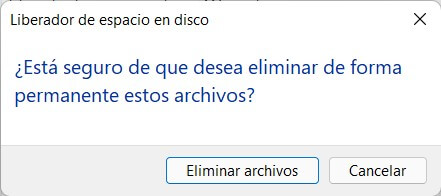
In the next warning, use the button Delete files to confirm.
The Disk Cleanup it will begin its work.
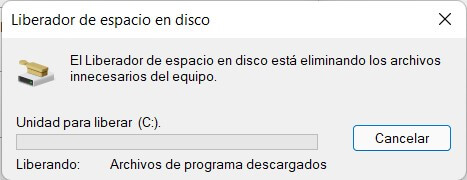
We recommend that you be patient. Depending on the power of your computer, the size of the disk or the amount of memory to be freed, this process may take time. Although you can use the equipment normally, the most logical thing is that you will notice a decrease in general performance.
How to free up space in Windows 11 thanks to the storage sensor
Now you know one of the most effective ways to free up space in Windows 11. However, it is not the only one. One functionality that Windows includes is the Storage sensor. With it it is very easy to keep the main unit of the system clean in an automated way, without you having to intervene. To locate your options, go to the device configuration application, click on the section System and access Storage.
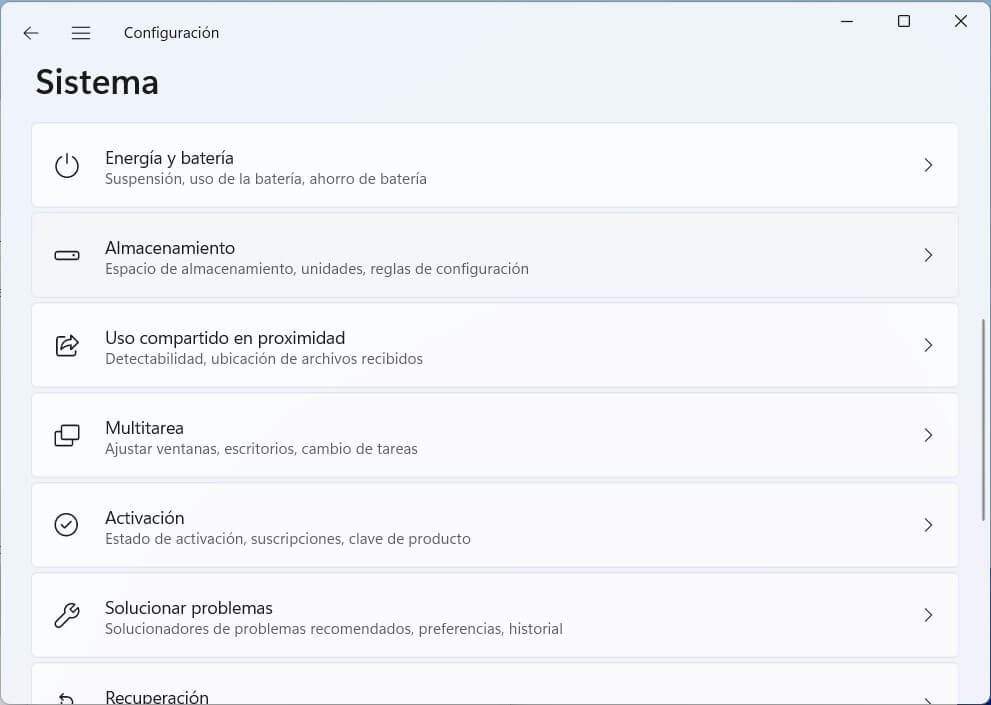
As soon as you enter this section of the configuration, you will have very useful information. First, Windows 11 will show you which directories are taking up the most space. Most are nested within the category Others. It also allows you to see the size of the applications or the number of temporary files on the computer. Our advice is to spend some time identifying which are the largest files that you keep in the internal storage of the computer.
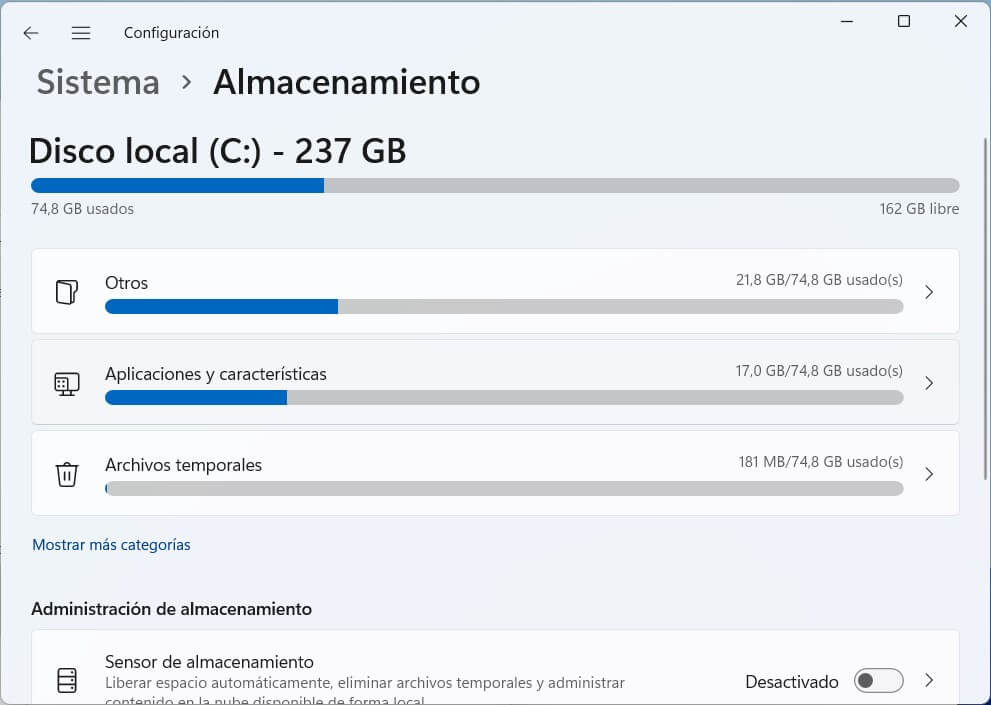
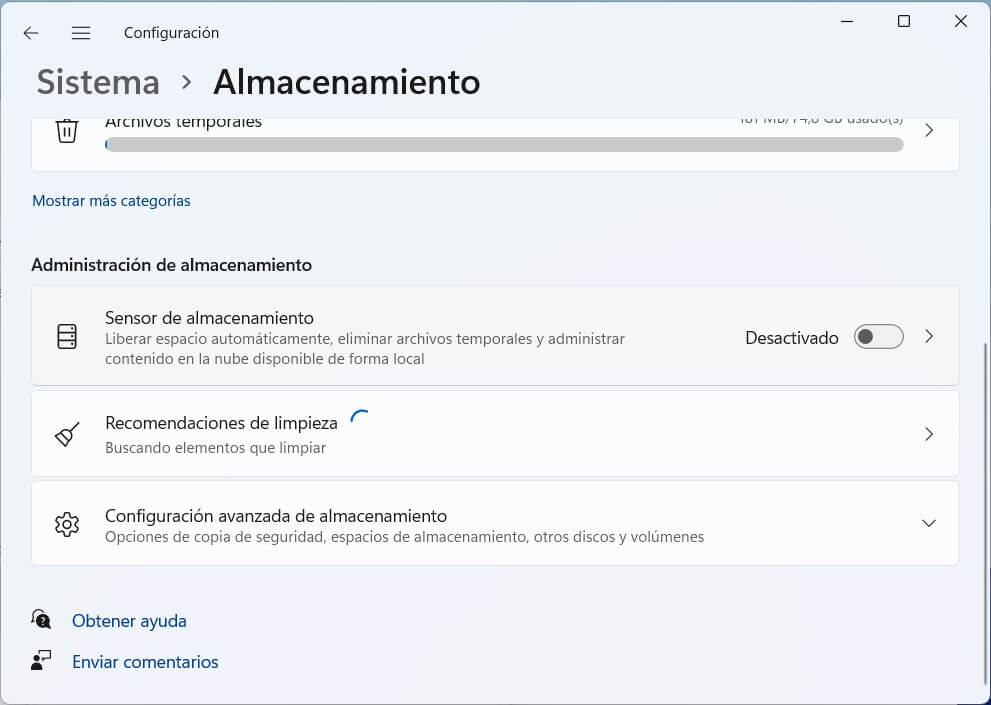
If you scroll the list of options down, you will see the option Storage sensor. We must clarify that we have not deactivated it for the occasion. In the equipment we use, this function was disabled by default. If you want to activate it, click on the slider. On the contrary, if you want to discover more options, click on the arrow.
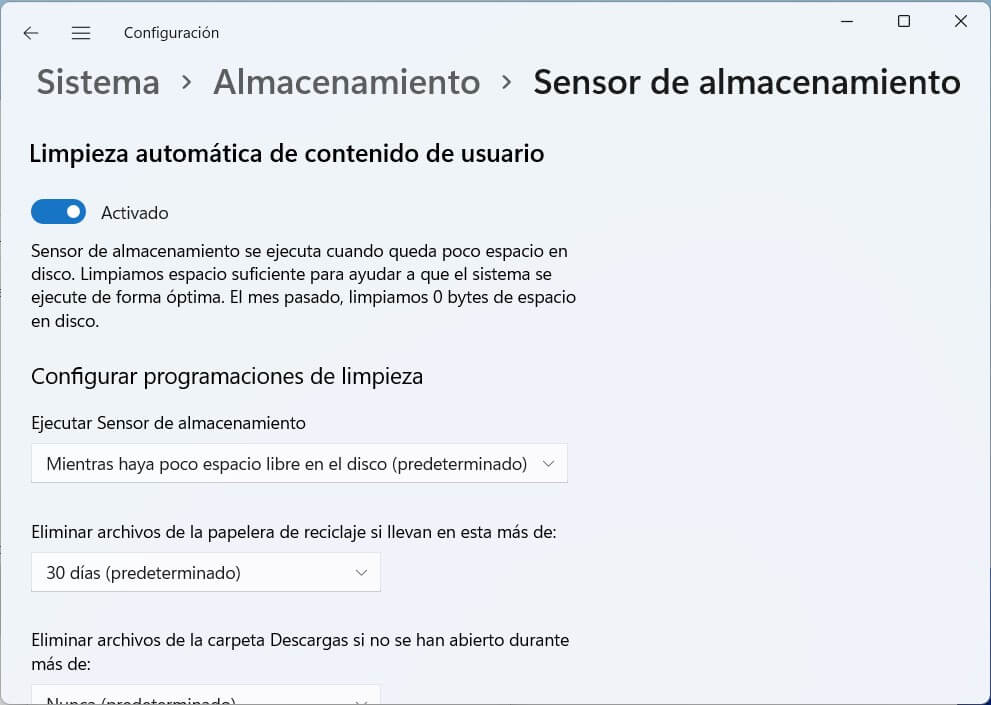
Among the parameters of the Storage sensor you will find automatic cleaning of user content. When space is low, the tool kicks in to clean the disk by deleting unnecessary files. The goal is for the equipment to function optimally. In addition, you have some interesting cleaning schedules:
- Run Storage Sensor. It allows you to choose when the storage sensor should start up.
- Delete files from the Recycle Bin if they have been in the Recycle Bin for more than. Adjusts the maximum time files will spend in the recycle bin.
- Delete files from the Downloads folder if they haven’t been open for more than. A very practical setting if you tend to accumulate files in the download folder. Depending on the time that has passed since your last opening, these will be automatically deleted.
In the lower area of the settings, you will see some options related to the cloud files. Only apps that integrate properly with Windows will appear here, such as OneDrive or iCloud Drive. Thanks to this implementation, from the settings it is possible to determine if the documents should keep a local copy on the computer and for how long.
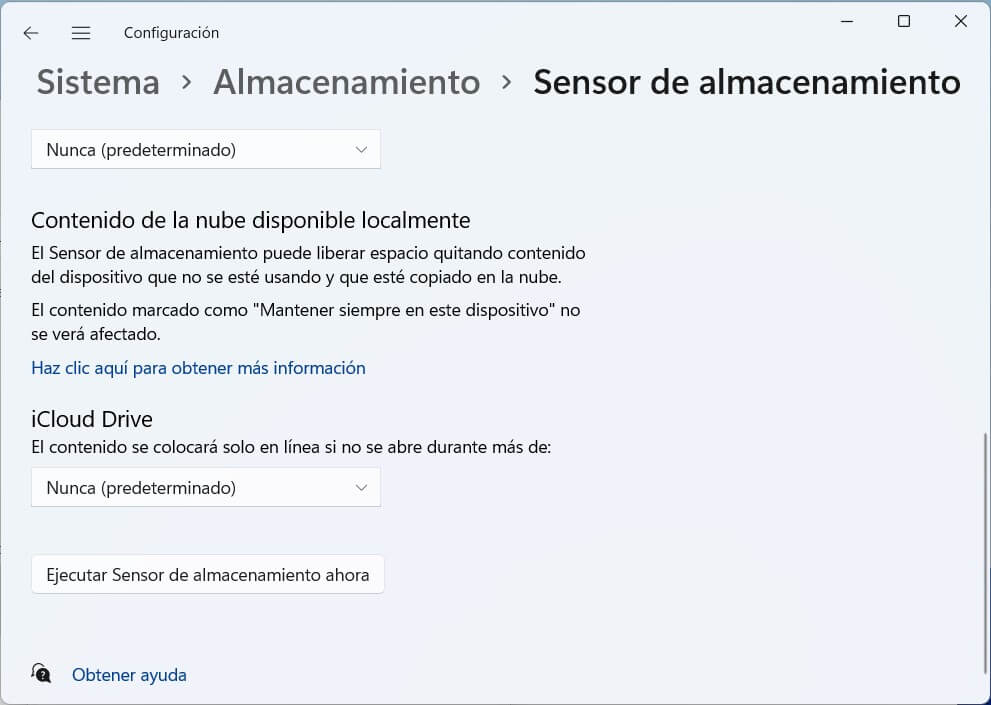
Finally, you will see a button called Run Storage Sense Now.
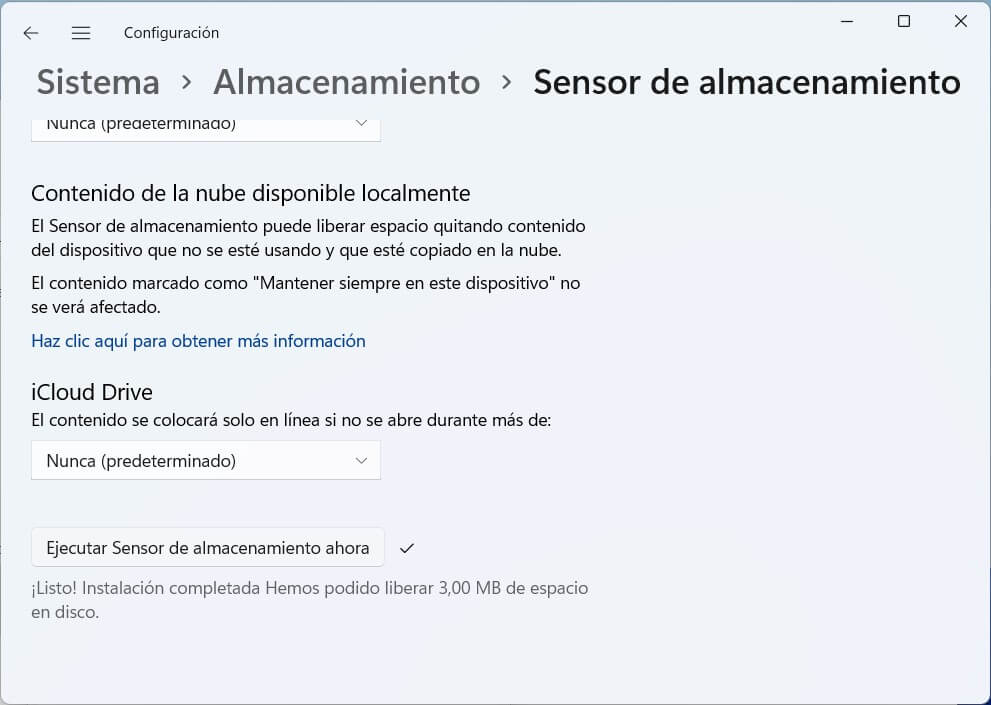
Press on him so that he Storage sensor take action immediately.
Other tips to avoid running out of space in Windows 11
Although the two methods mentioned in this guide are really advisable when it comes to free up space in Windows 11, there are other tips that we must give you so that you never run out of space.
- Use the cloud intensively or partially to mitigate the lack of space on the equipment. Maybe you can buy some space to upload the largest files or take advantage of the free Google Drive or OneDrive fees. Another option is to take advantage of the selective downloading of files that many services of this type offer.
- Buy an external hard drive. This is a necessary recommendation if your problem is lack of space. With an external hard drive it is possible to create a copy of your heaviest files and, in this way, reserve the internal storage for the operating system and applications.
- Install a new internal hard drive. In this blog we have already explained which are some of the most recommended models.
- Delete programs that you no longer use. Again, an effective solution to combat the space problem is to remove apps.
And you, what tools do you use to keep your hard drive clean? Do you usually use Windows utilities or do you prefer to install third-party programs? Do you have two or more hard drives installed on your computer? Leave your opinion in the comments. We read you!