


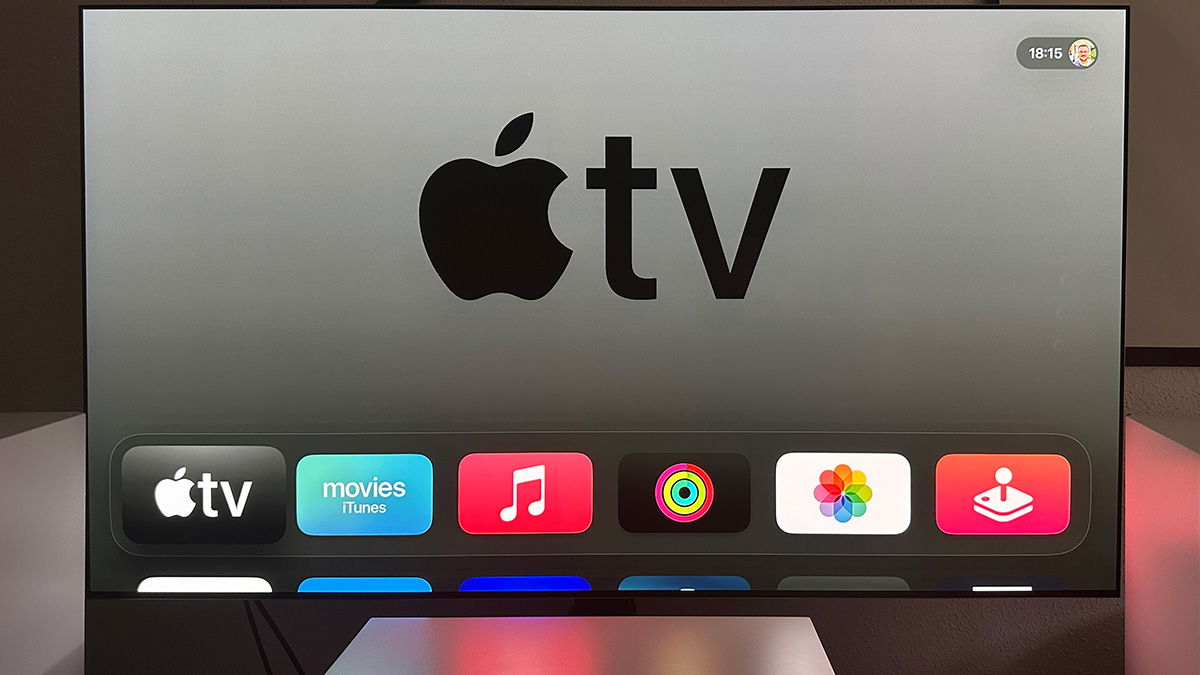
Nowadays a device like the Apple TV can be a little more overlooked than it was a few years ago. When you get a relatively new television, streaming apps are added to the television, so why have an external device that performs the same function? Well, it does that function and more. But it also has amazing picture quality. Anyway, we don't want to talk about reasons to own an Apple TV. But if you already have it, here are some tricks to help you get the most out of it.
The basic operation of Apple TV box is very simple. But it's true, especially if you don't use it much. Some of its more hidden functions may be overlooked by you. We're not talking about super complicated tricks, but rather small details that allow you to manage your Apple TV more fluidly.
With these 10 tricks for WebOS, you'll be the “master” of Apple TV
So, without further ado, let's see 10 tricks for tvOS that will let us handle Apple TV like real pros.
Close all apps you have running in the background
Almost all smart TV operating systems today have a “bad habit” of not closing apps properly. They stay in the background so when we open them again they run very fast. And tvOS is no exception. Apple's system leaves applications open on exit, but thankfully it lets you close them in a very simple way..
There is only one thing you need to do Press the button on the remote control twice quickly. By doing this, open applications will appear and Use the touch trackpad to move between them and slide up and close.
Disable automatic preview
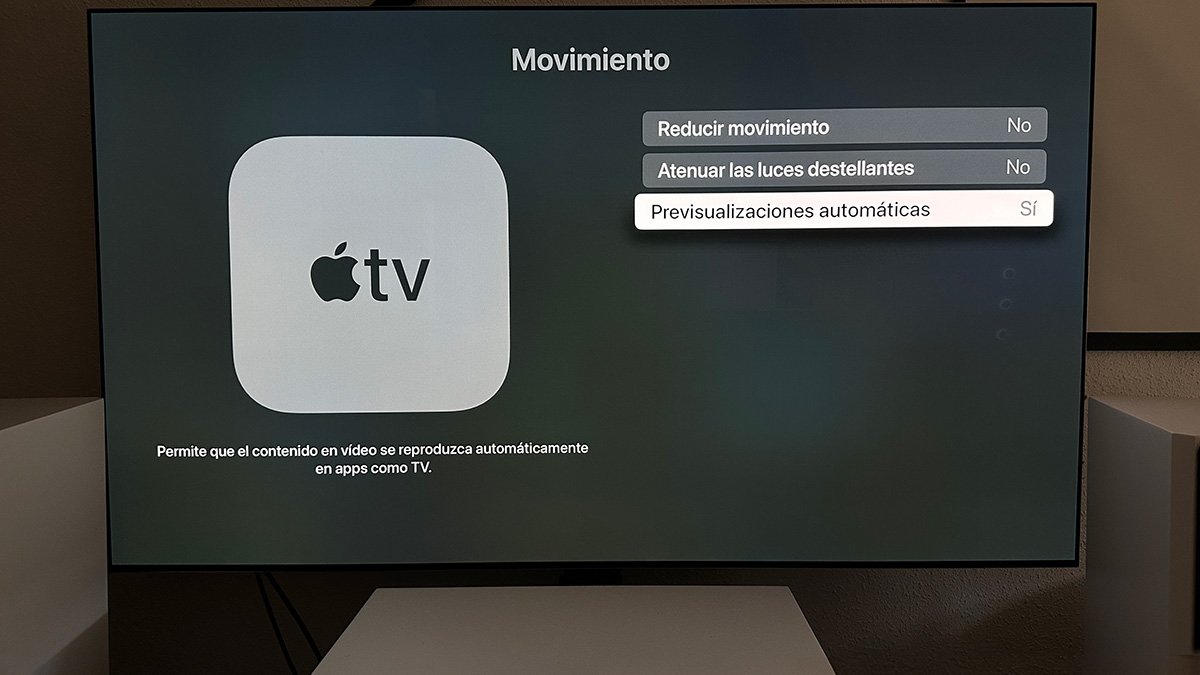 Most video streaming sites have an automatic preview system. That is, you watch a title, be it a movie or a series, and the trailer plays automatically. Personally, this is an activity that I don't like because it catches you off guard and creates a huge scare.
We have already explained how to disable it on Netflix. Fortunately, disabling this feature on tvOS is pretty easy. We just have to go systemsLook for the option Access and enter the option Movement. From here you can Check the No option in “Automatic previews”..
Create folders to organize your home screen
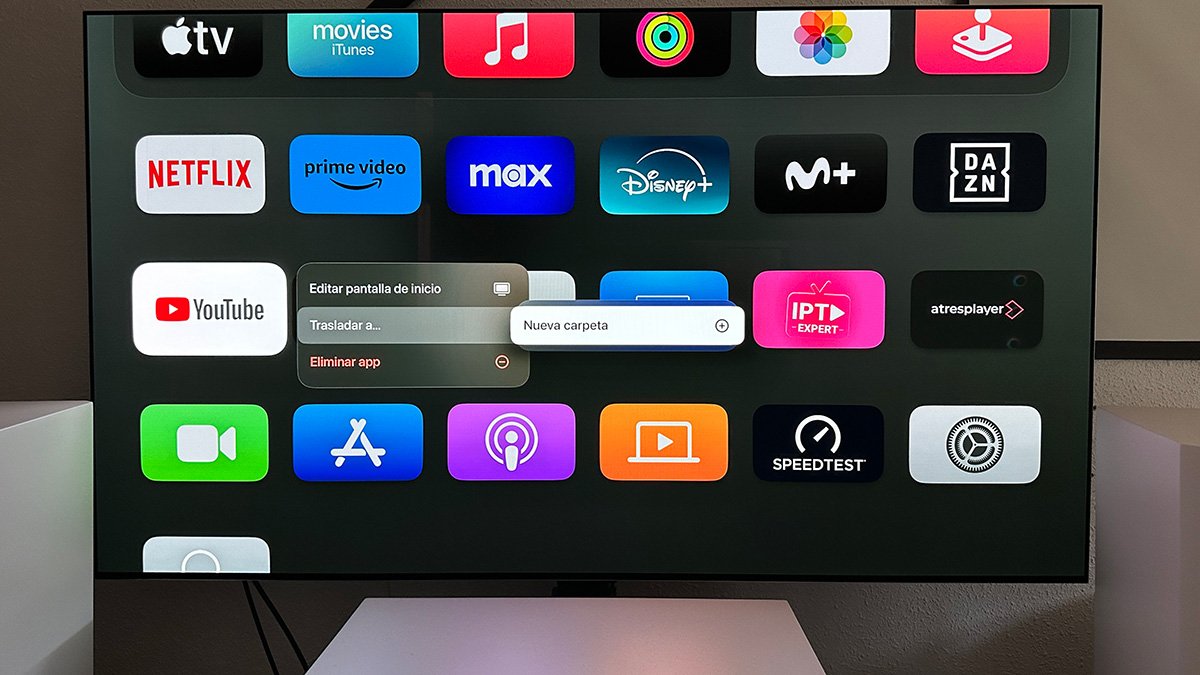 Just like the iPhone, when you install apps on TVOS it automatically places them on the home screen. If we have some applications, it is not a problem, but It's a “disaster” if you want to try out new apps or install multiple games.
However, even if you don't know, tvOS lets you create folders and organize everything better. The only thing we need to do is press and hold the center button on the Apple TV remote control, and in the drop-down menu that appears, choose the option. “Move to” then “New Folder”.
Use the image in any application
 function PiP, Picture in Picture, lets you watch two shows at the same time. Native Apple apps are compatible with this feature, but most third-party apps are not.
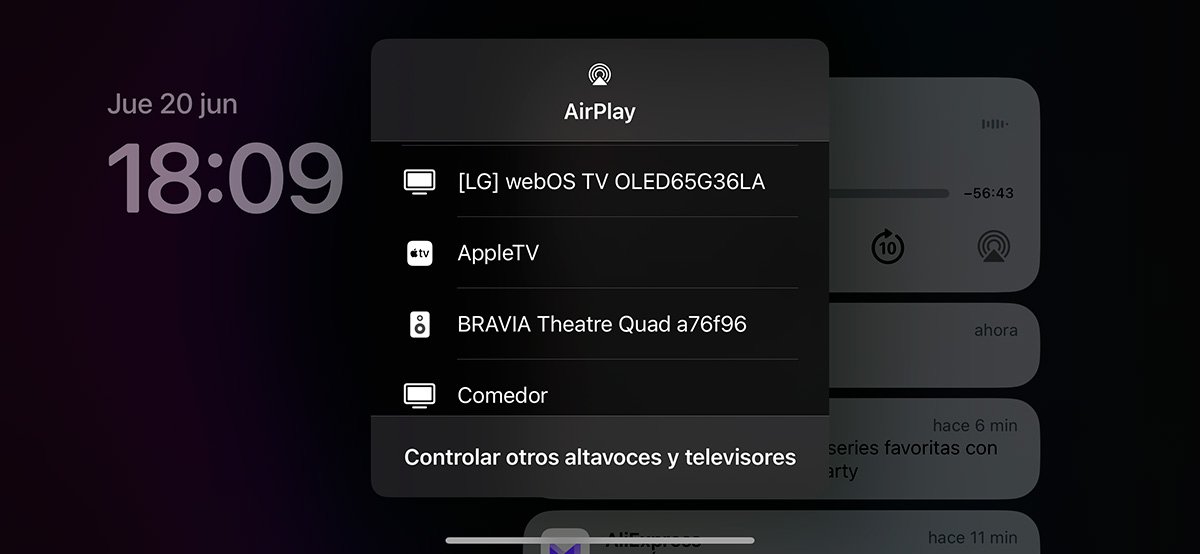
However, there is a way to use PiP in any application. It is nothing but using the AirPlay function. I mean, we have to Play the video What we want in the app, for example Netflix, From iPhone. Once we play it, Cast to Apple TV using AirPlay. If you do this, you can use PiP functionality in any app.
Play as God intended by connecting your console controller
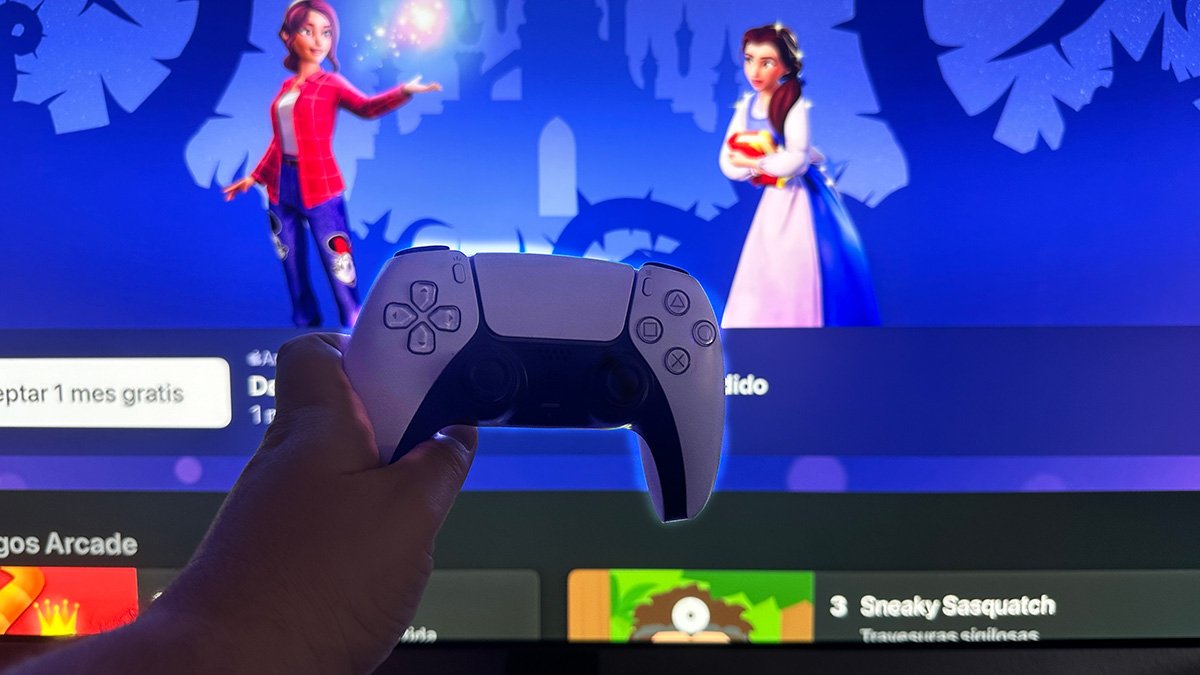 One of the most interesting services offered by Apple is Apple Arcade, which is included in the Apple One subscription and Apple TV is one of the devices where we can use this subscription the most. But are you actually going to play with a remote control? No, it's best to use a console controller on a PlayStation or Xbox.
It is very simple to do, You need to connect the controller to the Apple TV just like any other Bluetooth device. And it doesn't only work for Apple Arcade, but also for recent emulators that have reached tvOS, for example.
Enable automatic range and frame adjustment
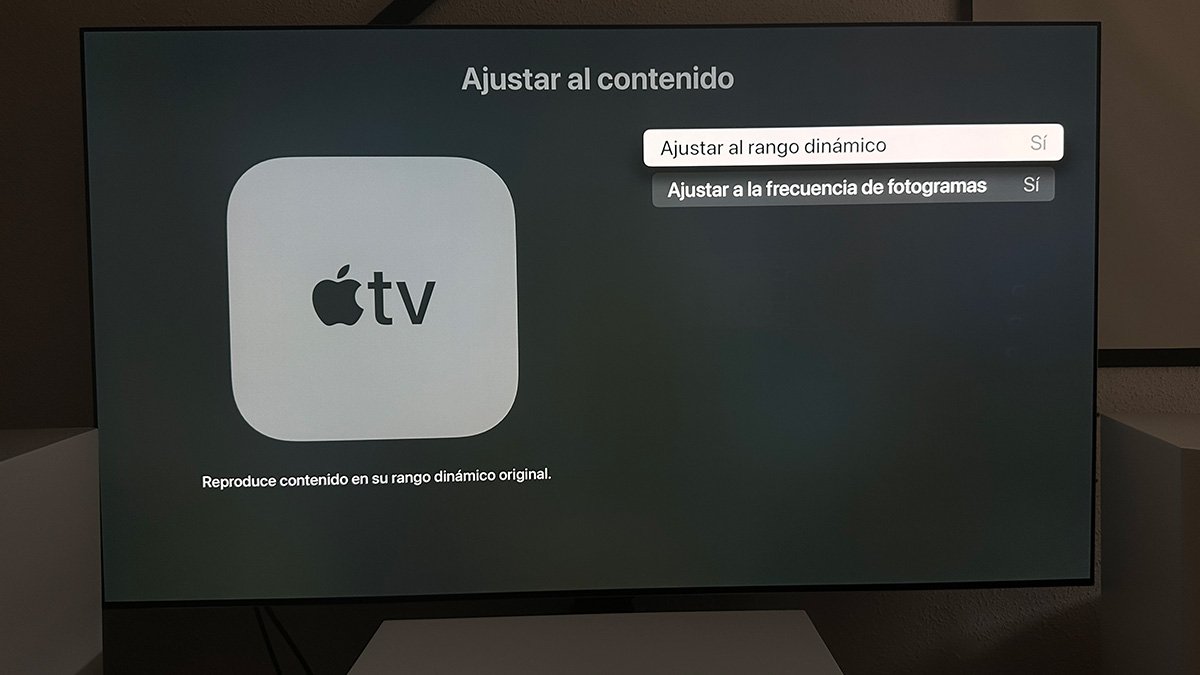 We've commented on this many times, but it's important to have a good background, so we're repeating it. You must enter to configure these options systems Then enter “Video and Audio” option.
In the image section, we have to Enables Dolby Vision format and can be used on compatible platforms. On the other hand, you will find that you have an option that refers to the design. This refers to the format used in the Apple TV menu and interface, not the playback format. So you can leave it in 4K SDR, it won't always be in HDR.
As for the remaining options, if you have a television, you can set the “YCbCr” format and 4:4:4 chroma key. finally, Most important, out of the two options “Fit to content”, mark yes option in both Limit and Frames.. It adjusts perfectly to the Apple TV design and we have no jitter.
Change the function of the TV format button
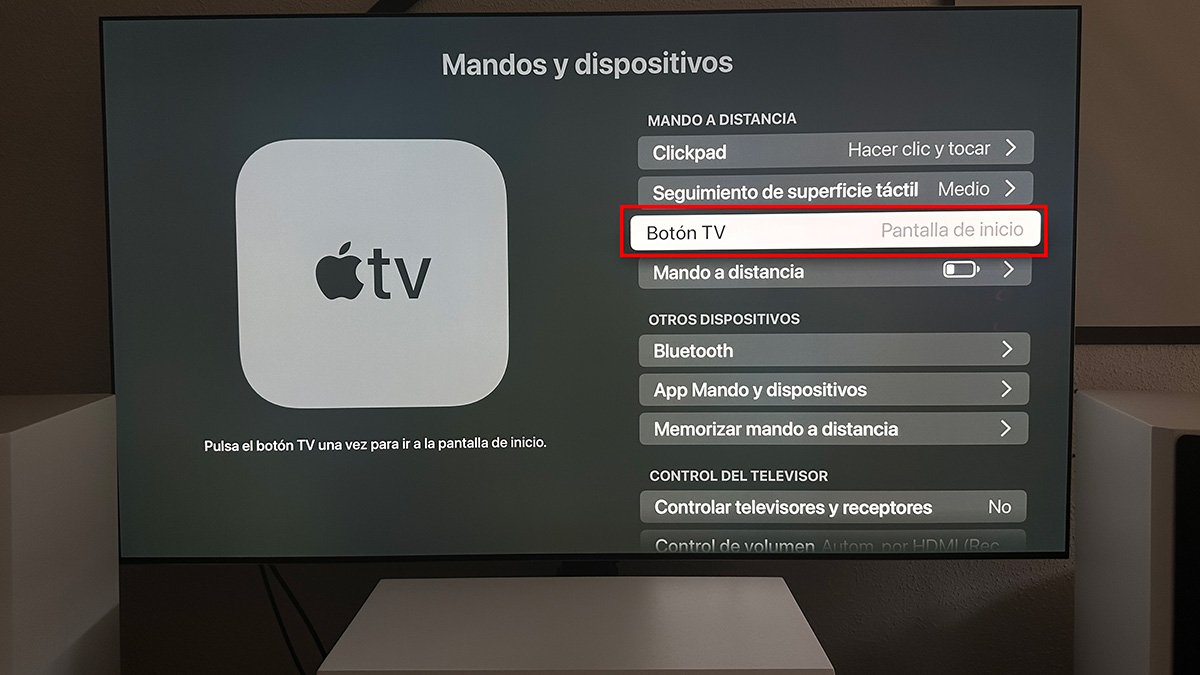 The Apple TV remote has a button with a map of the TV, right? This button can lead to confusion, as it is logical to think that it is used to go to the tvOS main menu from any part of the interface. not right, By default, it is used to launch the Apple TV+ app.
however, can change. We can configure the TV button function on the remote. To do this we simply enter systems And we're looking for options “Controls and Devices”. Here we enter “TV button”. “Home Screen” option. From now on, that button will take us to the home screen, not the Apple TV+ app.
Master Control Center
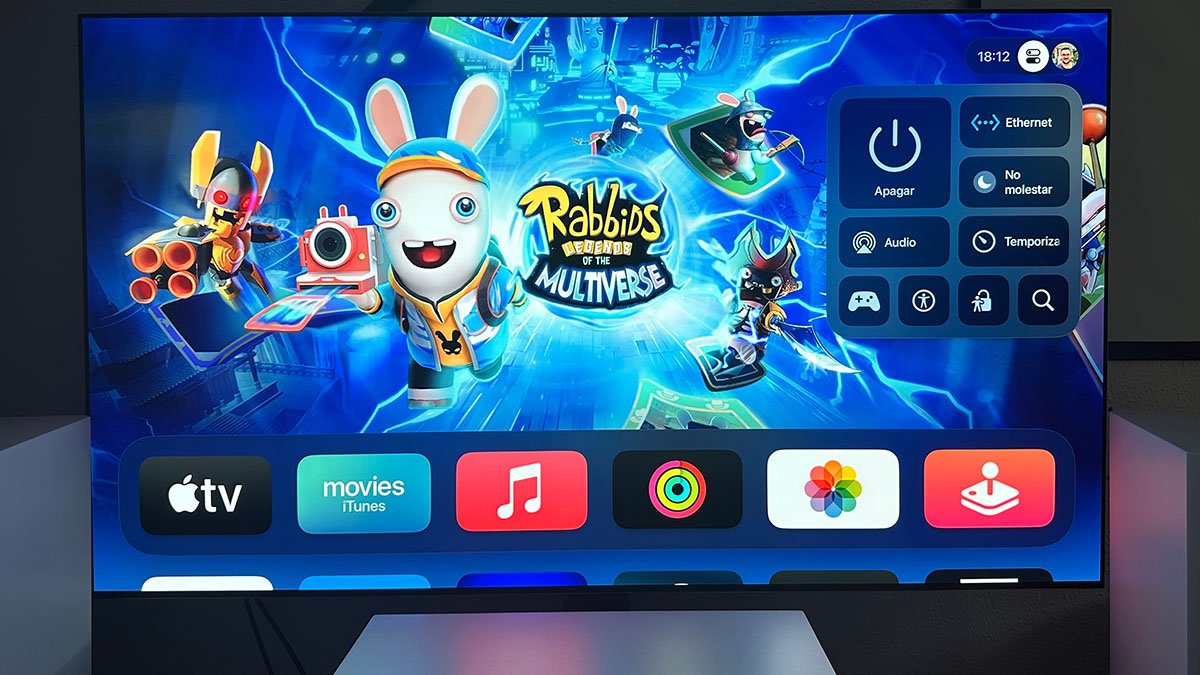 Did you know that tvOS has a control center similar to the one in iOS or iPadOS? All you have to do to access it Press and hold the TV button on the remote control for a few seconds. You will see a small window open at the top right. This is the tvOS Control Center.
From here we can turn off Apple TV, Send audio to an external device using AirPlayTurn on the timer, access accessibility options or Activate “Do Not Disturb” mode, among other activities. Additionally, you can switch users by pressing the trackpad to the right (if multiple are configured on the Apple TV).
Integrate your streaming services into the TV app
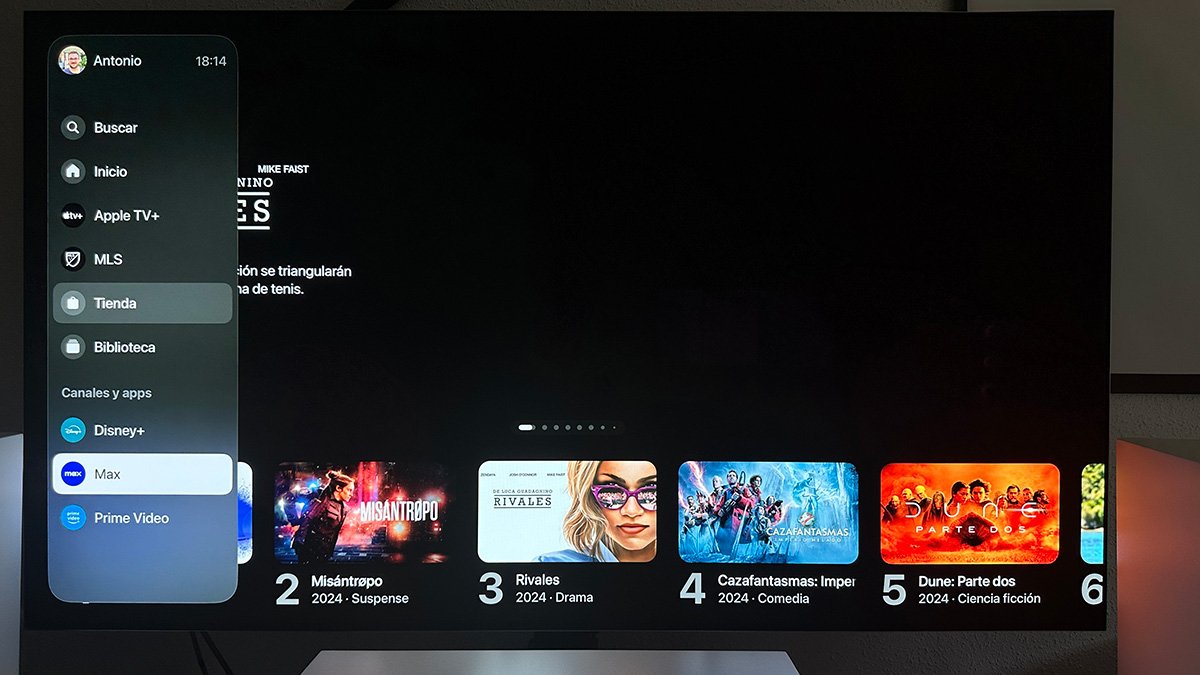
The TV app has changed significantly in one of the latest tvOS updates. Now Apple wants to use it as a kind of nerve center for all Apple TV content, not just its site. So Other streaming apps or channel services can be “connected” through the TV application so that everything is centralized.
We have only to do this Enter TV And in the menu on the left Go to “Store” option. Once here we will see a section on the middle screen “Add Channels and Apps”. Here is a list of apps compatible with the integration. For example Apps like Prime Video, Max or SkyShowtime can be connected.
What is the purpose of integrating this app with the main TV app? OK for example When we search for a series or movie title, it tells us on which service or services it is available. Not only does it tell you where it is, but it allows you to directly access the service and content by clicking on it.
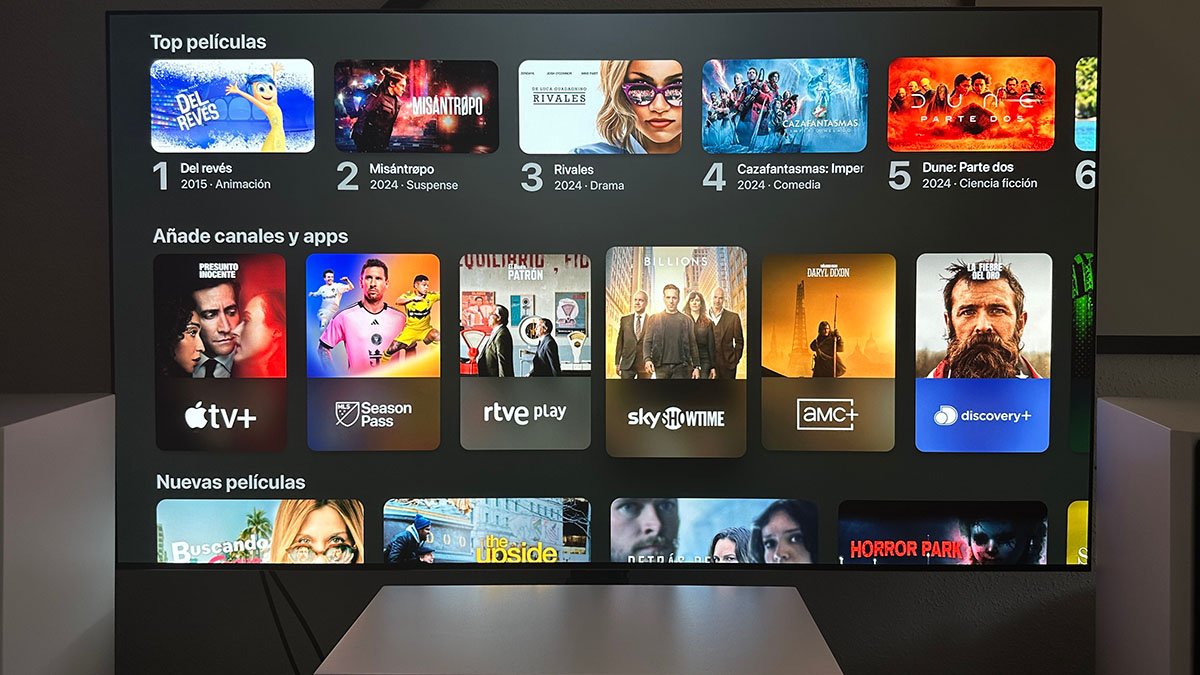 For example, we can search for Dune 2 and we will see that the application gives us options to buy and rent, but it also says that it is available to us in Max. It is a very convenient way to know and directly access what we are looking forNo need to open multiple apps to find it.
Yes, unfortunately, Not all services are included. However, really, the only “big” I miss is Netflix. A shame really as this is a super useful function.
Force Apple TV to restart remotely
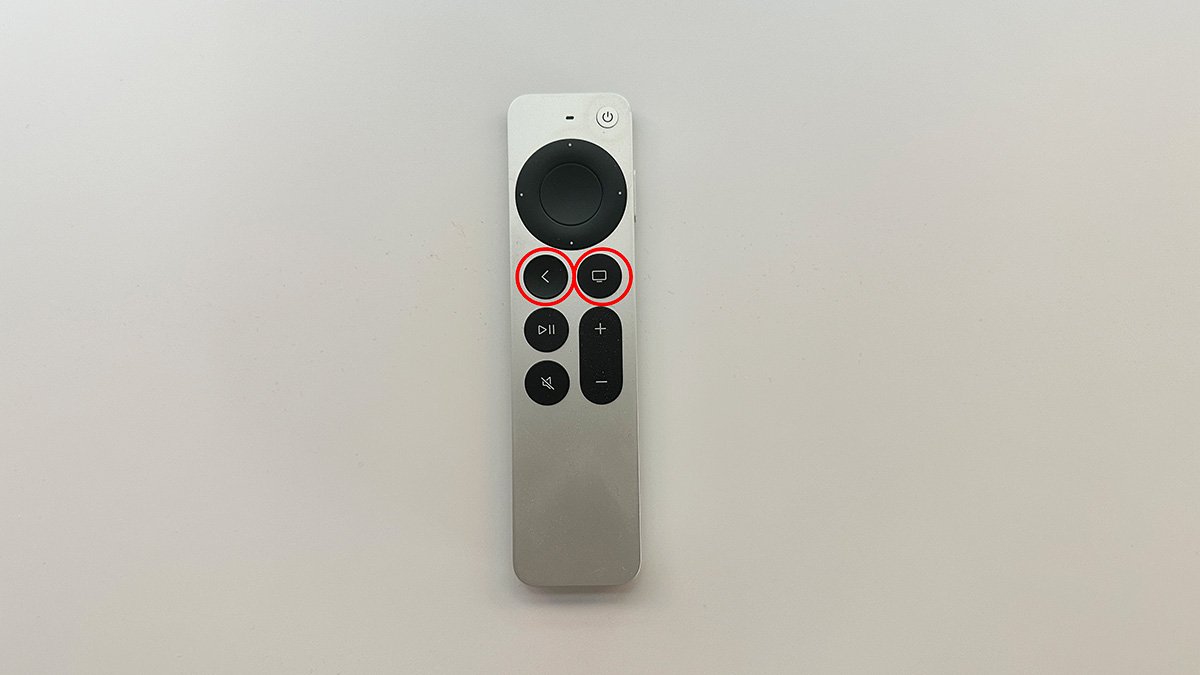
Finally you should know that the Apple TV remote allows you to do one of a kind Forced reboot of the device using a combination of buttons. Very useful if anytime TVOS crashes or Apple TV becomes unresponsive.
That's the way to do it Press and hold the back button and the TV button on the remote for a few seconds. You will see the Apple TV completely shut down and restart. A good way to force the device to “restart”. And since we're talking about potential issues, here's a guide we created to reset Apple TV and start fresh.